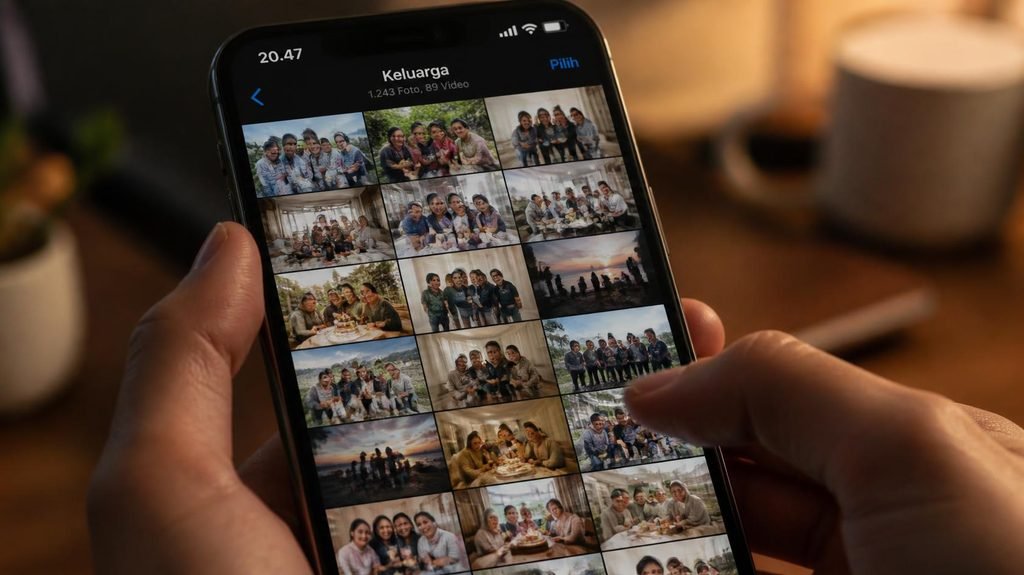
You tap “Back Up Now,” a little spinner spins, and your photos vanish somewhere called “the cloud.” Where did they go? Are they safe? Why does your phone keep saying storage full anyway?
“The cloud” sounds like weather. It’s actually much simpler — and the misunderstanding of it causes two very real disasters: people who pay for storage they don’t need, and people who delete photos thinking they’re protected… and lose them forever.

- Your Personal Streaming Server – Build your own Netflix-style media library and stream 4K movies, shows and photos to an…
- Create Your Own Cloud – Store your entire photo, video and music collection; access from anywhere with fast 282 MB/s tra…
- Creator-Grade Backup Solution – Protect your irreplaceable content with automated backups to cloud services, external dr…
The library analogy (this explains everything):
The cloud is a giant library. Not a poetic one — an actual warehouse with millions of shelves. When your phone “backs up” a photo, it sends a copy to a shelf with your name on it, at a company like Google or Apple. You can visit your shelf from any device, any time, forever.
Notice the word: copy. Backing up doesn’t move photos off your phone — it duplicates them. Your photos now live in two places: your phone (the original) and the library shelf (the copy).
Disaster #1: Deleting on your phone deletes the cloud copy too.
Here’s the trap that breaks hearts. Google Photos and iCloud Photos are sync services, not pure backup vaults. Sync means “keep both places identical” — so if you delete a photo from your phone, the library obediently deletes its copy too. Mirror, not vault.
This is why “freeing space” by deleting photos after “backing them up” can wipe out both copies at once. The safe tool is the specific “Free up space” feature inside Google Photos (it only removes device copies it has verified are backed up) — never manual deletion. If you’re unsure, the full cleanup routine — including this exact trap — is in our phone storage guide.
Disaster #2: The free shelf is small, and you didn’t notice it filling.
- iCloud gives you 5 GB free.
- Google gives you 15 GB free — shared across Photos, Gmail, and Drive.
Now the math: a modern photo is 3–5 MB, but a minute of 4K video is ~400 MB. Record five minutes of your kid’s birthday in 4K and you’ve eaten 2 GB — a seventh of your entire Google allowance, from one clip. WhatsApp backups quietly add more. The “Storage Full” email arrives, usually mid-holiday.


When the shelf fills, you have three options:
- Pay monthly. ~$1–3/month buys 100–200 GB. Fair price, but it’s forever — and if you ever stop paying, providers typically hold your data for a grace period (~30 days) before deleting. Read that sentence twice: stop paying, lose photos.
- Move the archive to a computer or hard drive. Free, permanent, requires one boring afternoon. Best for photos you want to keep but rarely look at.
- Clean first, pay later. Most people’s storage is 30–40% junk — videos of the floor, duplicate bursts, 2021’s screenshots. A real cleanup often delays or cancels the subscription entirely.
Is the library safe, though?
“The cloud is just someone else’s computer” — true, but that someone (Google, Apple, Amazon) stores your data encrypted, in multiple data centers, with security teams bigger than most banks. Your photos are safer there than on a phone that can be dropped in a toilet.
The real risks are embarrassingly human:
- Losing the account. Forget the password, lose the recovery email, fail verification — and your library is locked with your photos inside. Recovery is genuinely hard. Write down your recovery info somewhere physical.
- The single-copy delusion. Library shelves can close (services shut down, accounts get banned by mistake). The rule of precious files: two places, minimum. Cloud + computer, or cloud + hard drive.
The 10-minute audit (do this once):
- Check what you’re actually using: iPhone → Settings → your name → iCloud. Android → Google One app or Photos → profile icon.
- Confirm backup is ON and current (Photos app → profile → “Backup complete”).
- Decide your overflow plan now, before the birthday party, not during it.
Your photos are the one category of “stuff” that can’t be repurchased. Two minutes of understanding how the library works is the cheapest insurance you’ll ever get.
Disclosure: This post contains affiliate links. If you click through and make a purchase, we may earn a small commission at no extra cost to you. We only recommend products we genuinely believe offer great value.