
Laptop cleaning goes wrong in two opposite directions. The never-cleaned machine slowly chokes on dust, throttles itself to half speed, and gets blamed for “getting old” — when all it wanted was air. And the badly-cleaned machine gets Windex on the screen (permanent haze), spray into the keyboard (dead board), or a vacuum against the fan (electrical damage). This tutorial avoids both failure modes. Fifteen minutes, five zones.
Why this matters for speed (30 seconds of science):
Dust mats clog the vents → heat can’t escape → the laptop deliberately slows its own processor to survive. That’s thermal throttling, and it’s why “it got so slow” is often a cleaning problem, not an aging problem — it’s Step 8 of our free laptop revival checklist, expanded here into the full method.

- [Quick Tear-Away Rag Reach] Swiftly get a microfiber cloth from our convenient rolls for instant cleaning, and you can h…
- [Alternative to Paper Towels] Designed for durability, the cloths are washable and reusable up to 50 times. The sturdy 1…
- [Exceptional Absorption] Handle any spill, wet or dry. The cloths can absorb up to 5 times their weight in water, captur…
The toolkit (all cheap, mostly already in your house):
- Microfiber cloths (two)
- Isopropyl alcohol ~70%, diluted roughly 50/50 with water
- A can of compressed air
- A soft toothbrush and wooden toothpicks
- Forbidden list: window/glass cleaners (ammonia destroys screen coatings), paper towels (micro-scratches), anything wet sprayed at the machine, metal tools in ports.
Before anything: shut down fully, unplug, and if it’s a gaming/workhorse laptop, let it cool ten minutes.
Zone 1 — Vents and fans (the performance zone).
Find the grille slits (usually sides/underside). Blast compressed air in short bursts from an angle — long blasts push dust deeper, and blasting straight into a fan spins it (a spinning motor is a generator; the back-current can damage the board). If you can reach a fan blade with a toothpick through the vent, hold it still while you blast. Do this over a sink, outside if possible — what comes out will humble you. Pets or smokers in the house: do this quarterly instead of yearly. This single zone is the difference between “my laptop is dying” and “my laptop got its second wind.”
Zone 2 — Screen (the delicate zone).
Dry microfiber first, gentle one-direction wipes. Smudges that survive: dampen the corner of the cloth with the 50/50 mix — damp, never dripping, and never spray anything at the screen. The anti-glare and anti-fingerprint coatings on modern screens are dissolved by ammonia-based cleaners; that “permanent fog” on old laptops is usually a destroyed coating, not dirt. This zone is why the forbidden list exists.

- The original electronics toolkit: Designed for computer, smartphone, tablet, and gaming repair, backed by thousands of f…
- Intentional selection: All the tools you need. A 64 precision bit driver set, tweezers, flex extension, opening tools, a…
- Secure design: Magnetic case and foam insert ensure secure storage and transportation. Additionally, the inside of the l…
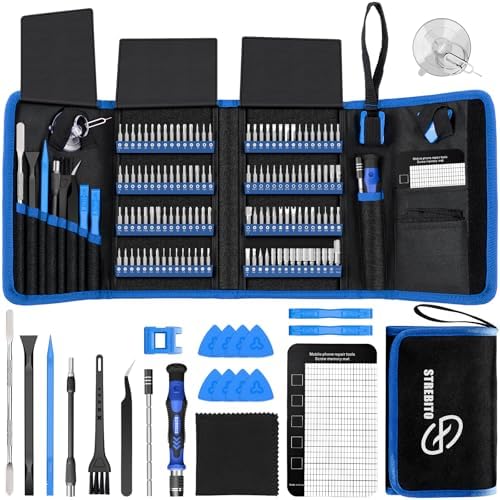
- 【Wide Application】This precision screwdriver set has 120 bits, complete with every driver bit you’ll need to tackle any …
- 【Humanized Design】This electronic screwdriver set has been professionally designed to maximize your repair capabilities….
- 【Magnetic Design】This professional tool set has 2 magnetic tools, help to save your energy and time. The 5.7*3.3″ magnet…
Zone 3 — Keyboard (the crumb zone).
Powered off: turn the machine upside down over a trash can and give it a gentle shake — the honest harvest falls out. Then toothbrush along the rows (not across — along the gaps), toothpick around each key’s gunk-ring, and finally the isopropyl cloth over the keycaps. Liquid goes on the cloth, never on or into the machine. Keyboard backlights turn this from gross to satisfying.
Zone 4 — Ports (the mystery zone).
Here’s the trick almost nobody knows: pocket lint packs itself into USB-C ports until the cable can’t fully seat — and the laptop charges slowly, or not at all. People buy new chargers, new cables, even “repair” the laptop… and the fix was a toothpick. Gently run a wooden toothpick around the port’s walls (no metal — paperclips scratch the contacts), finish with a short air blast. More “broken charger” mysteries end in this zone than in any store.
Zone 5 — Trackpad, hinge, and exterior.
Trackpad gets the screen treatment (microfiber, 50/50 on the corner). The hinge gap collects a felt strip of gunk — toothpick along it once and it looks like a different machine. Exterior: the isopropyl cloth, and watch the laptop visibly de-age.
The cadence, so it never gets bad again:
- Monthly: 5-minute wipe — screen and keyboard only.
- Quarterly: the full 15-minute, five-zone routine.
- Yearly (optional): if it’s out of warranty and you’re comfortable, opening the back panel for a deeper dust-out takes it another level — but Zones 1–5 alone cover 90% of the benefit.
A clean laptop runs cooler, and cooler means faster and longer-lived — heat is what quietly kills batteries and boards. Fifteen minutes, four times a year: the cheapest performance upgrade that isn’t an upgrade at all.
Disclosure: This post contains affiliate links. If you click through and make a purchase, we may earn a small commission at no extra cost to you. We only recommend products we genuinely believe offer great value.