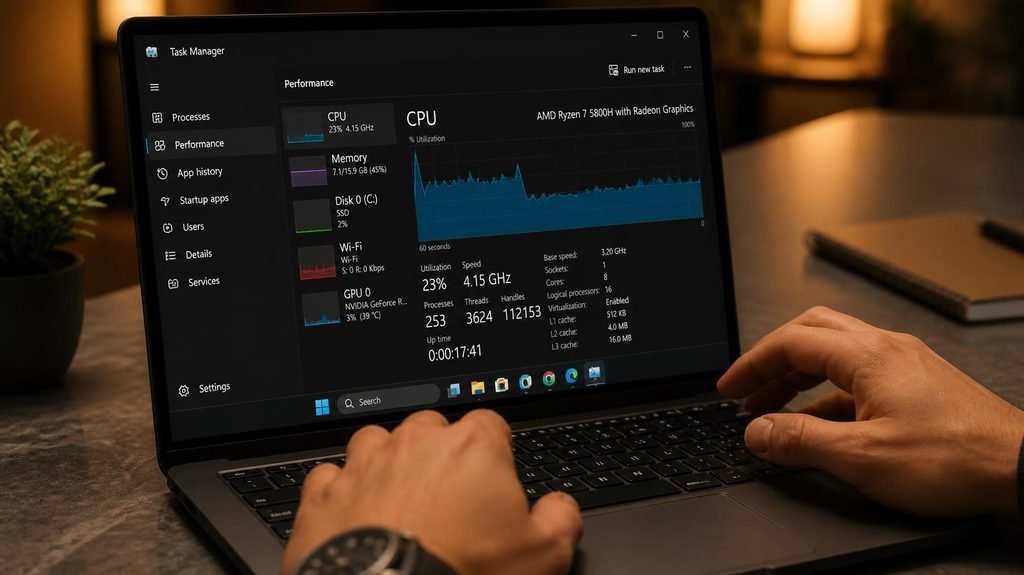
Before you pay a repair shop, buy an upgrade, or shop for a new laptop, you need one piece of information: how much RAM your current machine actually has. Most people guess wrong. Finding the real number takes under two minutes, requires no tools, and might save you hundreds of dollars.
On Windows (Method 1 — Task Manager):
- Right-click anywhere on the taskbar (the bar at the bottom of your screen) and select Task Manager. Or press Ctrl + Shift + Esc together.
- Click the Performance tab. If you only see a few icons, click “More details” first.
- Select Memory from the left sidebar.

- Less chaos, more calm. The refreshed design of Windows 11 enables you to do what you want effortlessly.
- Biometric logins. Encrypted authentication. And, of course, advanced antivirus defenses. Everything you need, plus more,…
- Make the most of your screen space with snap layouts, desktops, and seamless redocking.
You’ll now see everything: total RAM (e.g., “8.0 GB”), how much is currently in use, the speed, and — crucially — how many memory slots your laptop has and how many are filled.
On Windows (Method 2 — Settings):
If Task Manager feels intimidating: press the Windows key, type “About your PC”, hit Enter. Your RAM appears under “Installed RAM.”
On Mac:
Click the Apple logo (top-left corner) → About This Mac. Your memory appears on the overview screen. Note: on Apple Silicon Macs (M1/M2/M3), this memory is “unified” and soldered to the board — it cannot be upgraded, ever. That’s a fact many buyers learn only after purchasing.
How to read the number you just found:
- 4 GB or less: The machine is struggling with modern websites. This explains almost all of your slowness.
- 8 GB: Fine for browsing and documents, but it will choke with 20+ browser tabs plus Zoom.
- 16 GB: The comfort zone for almost everyone.
- 32 GB+: Only needed for video editing, 3D work, or heavy multitasking.

- BUILT FOR COLLEGE. AND BEYOND — MacBook Air with the M5 chip packs blazing speed and powerful AI capabilities into an in…
- TEAR THROUGH TOUGH ASSIGNMENTS — With its faster CPU and unified memory, the M5 chip delivers even more performance and …
- MAKE QUICK WORK OF YOUR TO-DO LIST — Apple Intelligence helps you write, express yourself, and get things done effortles…
The more important question: do you actually need more?
While you’re in Task Manager → Performance → Memory, look at the “In use” number during a normal workday (browser open, apps running). If you’re consistently above 85% — your RAM is the bottleneck. Two other telltale signs: browser tabs reloading every time you switch back to them, and the fan spinning loudly while you do nothing demanding.
Can your laptop even be upgraded?
Back in Task Manager → Memory, look at “Slots used.” If it says “1 of 2,” congratulations — there’s an empty slot, and adding a stick of RAM is a cheap, 10-minute job. If it says “1 of 1” or “2 of 2,” check your laptop’s model number plus the word “soldered RAM” — many modern thin laptops have RAM permanently attached to the motherboard, which means no upgrade path. Always check before hoping.
The bottom line: this two-minute check tells you whether your slow laptop needs a $40 fix, a free cleanup, or genuinely can’t be saved. Never let a salesperson answer that question for you.
Disclosure: This post contains affiliate links. If you click through and make a purchase, we may earn a small commission at no extra cost to you. We only recommend products we genuinely believe offer great value.