Every “slow laptop” article on the internet eventually says the same thing: “buy more RAM, buy an SSD.” Both are genuinely worth it — but before spending a single dollar, there’s a free checklist that revives a surprising number of machines. Work through these eight steps in order, and stop when the speed returns.
Step 1: Actually restart it (a real restart).
Most people close their laptop’s lid for weeks — that’s sleep, not shutdown. Sleep keeps everything in memory: accumulated junk, half-closed apps, memory leaks from days of use. A true restart (Start → Restart) clears it all. This alone fixes an embarrassing number of “it’s gotten slow lately” cases. If you can’t remember your last real restart, start here.

- Disclaimer: Maximum Speed requires overclocking/PC BIOS adjustments. Maximum speed and performance depend on system comp…
- Hand-sorted memory chips ensure high performance with generous overclocking headroom
- VENGEANCE LPX is optimized for wide compatibility with the latest Intel and AMD DDR4 motherboards
Step 2: Open the door and see who’s squatting.
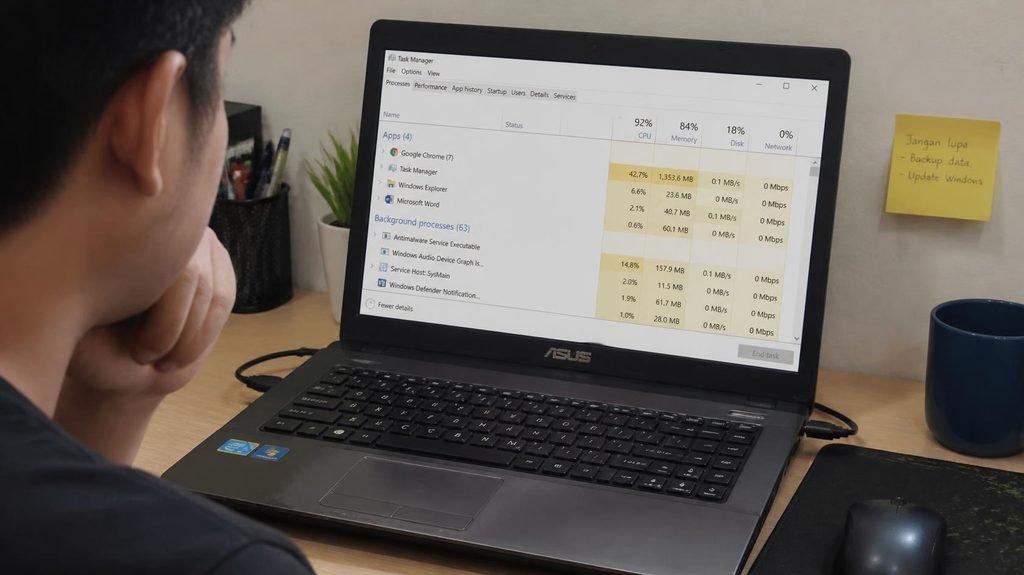
Press Ctrl + Shift + Esc (Task Manager) → Startup apps tab. This is the list of programs that launch themselves every time Windows boots — updater services, “helper” utilities, auto-start chat apps. Each one steals memory before you’ve opened anything. Disable anything you don’t use daily (right-click → Disable — you can always re-enable). Reboot and feel the difference at the login screen.
Step 3: Check whether RAM is actually your problem.
Don’t guess — measure. In Task Manager → Performance → Memory, watch the “in use” number during normal work. We’ve written a full 2-minute guide on checking your laptop’s RAM, including how to read “Slots used” and whether an upgrade is even possible on your machine. The short version: consistently above 85% in use = RAM is your bottleneck; well below that = look elsewhere (next steps).
Step 4: Free up the hard drive (the 20% rule).
Windows needs free space to breathe — for virtual memory, temp files, updates. When the system drive passes ~90% full, everything degrades. The fix is free: move photos and videos to cloud or an external drive, uninstall games you finished, run Windows’ built-in Storage settings (Settings → System → Storage) and let the cleanup suggestions run. Target: at least 20% free on the C: drive.
Step 5: Check what kind of drive you have — this one’s a plot twist.
If your laptop is a few years old, it may still have a spinning hard drive (HDD) inside — and that single component can make a fast laptop feel ancient. It’s the most common cause of “everything takes forever to load.” Check in 30 seconds: Task Manager → Performance → Disk — the right panel says either HDD or SSD. If it says HDD, stop troubleshooting: your machine’s real problem isn’t software. We explain the full SSD vs HDD difference (and why the swap transforms old laptops) in our head-to-head guide — it’s the one upgrade that routinely makes old laptops feel new.
- Disclaimer: Maximum Speed requires overclocking/PC BIOS adjustments. Maximum speed and performance depend on system comp…
- Hand-sorted memory chips ensure high performance with generous overclocking headroom
- VENGEANCE LPX is optimized for wide compatibility with the latest Intel and AMD DDR4 motherboards

- Disclaimer: Maximum Speed requires overclocking/PC BIOS adjustments. Maximum speed and performance depend on system comp…
- Hand-sorted memory chips ensure high performance with generous overclocking headroom
- VENGEANCE LPX is optimized for wide compatibility with the latest Intel and AMD DDR4 motherboards
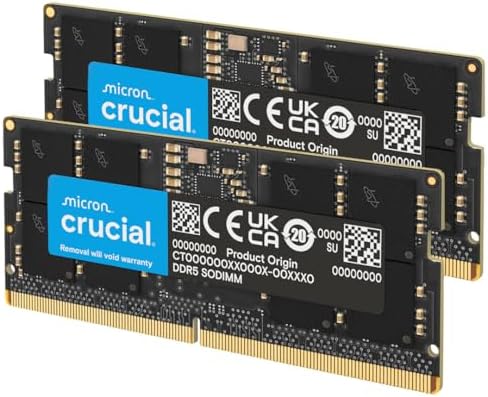
- Boosts System Performance: 32GB DDR5 RAM laptop memory kit (2x16GB) that operates at 5600MHz, 5200MHz, or 4800MHz to imp…
- Accelerated gaming performance: Every millisecond gained in fast-paced gameplay counts—power through heavy workloads and…
- Optimized DDR5 compatibility: Best for 12th Gen Intel Core and AMD Ryzen 7000 Series processors — Intel XMP 3.0 and AMD …
Step 6: Scan for malware (the polite step).
Before assuming the laptop is “just old,” rule out infection — loud fans at idle, a hijacked browser, and mysterious slowdowns are the classic signs. Windows has a free, lab-rated scanner built in: Windows Security → Virus & threat protection → Scan options → Microsoft Defender Offline Scan. Our full malware symptom guide walks through the seven signs and the exact response order. Clean result? Move on.
Step 7: Evict the bloatware.
Open Settings → Apps → sort by size. Pre-installed trials, manufacturer “utility suites,” and apps you installed once in 2021 all run background processes. Uninstall ruthlessly — anything you don’t recognize and can’t match to a purpose goes. (Not sure? Search the name — a real utility has documentation; junk has cleanup guides written about it.)
Step 8: The physical fix nobody thinks of: dust.
If the fan roars and the bottom gets hot during light use, the cooling vents are likely clogged with two years of household dust. A hot laptop throttles itself to protect the processor — running at half speed precisely when you need it. A blast of compressed air into the vents (short bursts, hold the fan still with a toothpick if possible) works minor miracles. Ten minutes, zero cost.
🧹 Bonus: 3 More Powerful Steps Most Guides Ignore
If you’ve worked through the first eight steps and your laptop still feels sluggish, these three extra moves are the hidden ones that often make a dramatic difference — and they cost absolutely nothing.
Step 9: Turn Off Unnecessary Visual Effects
Modern operating systems come loaded with animations, transparency, and fancy transitions that look great — but quietly eat up your processor and memory. On Windows, open System → Advanced System Settings → Performance → Settings, then select “Adjust for best performance”. On Mac, go to System Settings → Accessibility → Display and turn on “Reduce Motion”. You won’t miss the flashy animations, but your older laptop will suddenly have far more resources available for the things you actually use. On systems with less than 8GB of RAM, this single change can feel like a speed boost all by itself.
Step 10: Clear Hidden Junk & Trim Startup Apps
Every time you install software, some programs sneak into your startup list — cloud sync tools, updaters, chat apps — loading silently in the background before you even click anything. Press Ctrl + Shift + Esc → Startup tab, and disable anything you don’t actually need the second your laptop turns on. Then open your file explorer and type %temp% on Windows or visit ~/Library/Caches on Mac. Delete everything inside — these are temporary files that pile up for months and slow everything down, yet almost no one ever clears them.
Step 11: Restrict Background Search Indexing
By default, Windows Search and Spotlight scan every single file on your drive constantly, so searches feel instant. But on older laptops, that constant scanning runs nonstop and drags everything down. Open Indexing Options (Windows) or Spotlight Settings (Mac), and limit indexing only to folders you actually search often — like Documents, Pictures, and Downloads. Remove system folders, program files, and anything else you rarely touch. You’ll barely notice the difference in search speed, but your laptop will stop working overtime in the background.

💡 Final Thought
Speeding up an old laptop isn’t about buying expensive upgrades — it’s about stopping your machine from doing unnecessary work. Turn off the eye candy, clear out the invisible junk, and tell background services to calm down. Your laptop was fast once — these steps just help it get back to doing what it does best, without wasting energy on things you never needed in the first place.
When the free fixes aren’t enough:
If you’ve done all eight and the machine still crawls, now the paid fixes earn their money — and in fairness, they’re cheap: a RAM stick to reach 16GB, or an SSD swap for an HDD machine. Both are measured in tens of dollars, not hundreds, and both extend a laptop’s useful life by years. That’s the real order of operations: free diagnosis first, cheap upgrades second, and a new laptop only when the machine is genuinely out of road.
Disclosure: This post contains affiliate links. If you click through and make a purchase, we may earn a small commission at no extra cost to you. We only recommend products we genuinely believe offer great value.