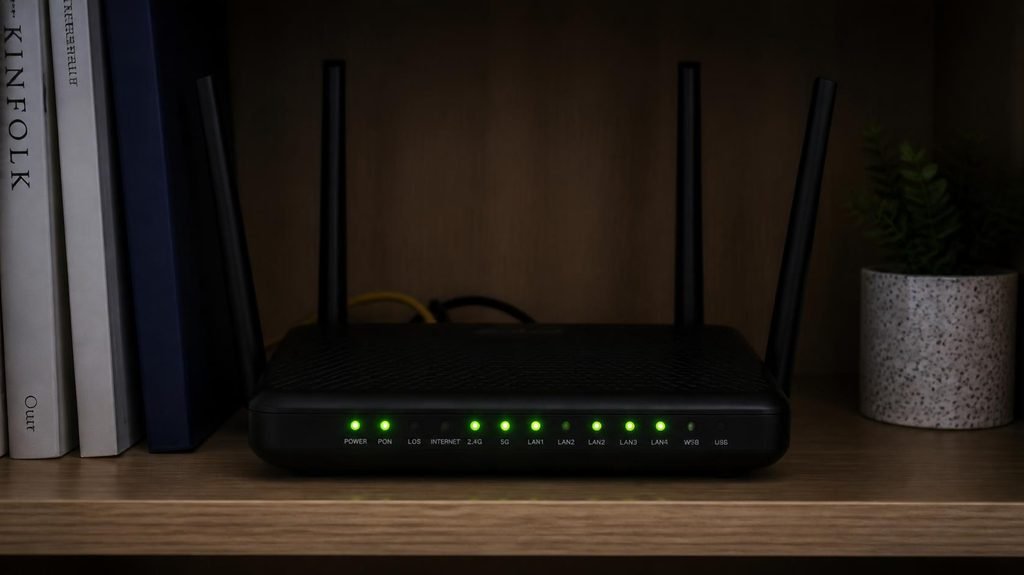
Slow WiFi is maddening because it’s invisible — you can’t see where the problem lives. So most people either suffer, or randomly throw money at a new router when the real culprit was something free to fix.
Here’s the debugging order that professionals use, from free-and-likely to last-resort. Do these in sequence, and stop the moment your speed returns.
Step 1: Restart the router (the 30-second classic).

- FASTER, FARTHER, MORE RELIABLE WIFI: A dedicated tri-band WiFi 7 router with a third high-speed band for demanding devic…
- WORKS WITH YOUR EXISTING INTERNET SERVICE: Pairs with your existing modem or gateway via ethernet. Compatible with most …
- SET UP AND MANAGE YOUR NETWORK WITH THE NIGHTHAWK APP: Download the free Nighthawk app on iOS or Android for guided setu…
Yes, “turn it off and on again” is a cliché — and it genuinely works. Routers are tiny computers that run for months without rest; their memory fragments and connections stack up like unwashed dishes. Unplug, count to 30, plug back in. This fixes an embarrassing number of cases because it clears the router’s clogged memory, not your internet.
Step 2: Find out if it’s the WiFi or the internet itself.
This step saves people the most money. Stand next to your router and run a speed test (any speed test site). Then run the same test far from the router.
- Fast near the router, slow far away → it’s a WiFi coverage problem (Step 3).
- Slow everywhere, even next to the router → it’s your internet connection or your router (Steps 5–7). A new “faster” router will fix nothing here.
- Also compare with your plan: if you pay for 200 Mbps and get 95 with a cable, that’s one conversation with your provider — no gadget solves it.
Step 3: Move the router (free, surprisingly effective).
Physics check: WiFi is radio. Radio hates metal, water (fish tanks, human bodies), and thick walls — and it spreads downward from the antenna. So the worst spots are the floor, a corner, inside a cabinet, or next to a metal fridge. The best spots are elevated, central, and open — a shelf in the middle of the home beats a corner of the basement every time.
Also: microwaves and old cordless phones broadcast interference on the 2.4GHz band. Router next to a microwave? That explains the nightly slowdown during dinner.
Step 4: Use the right band — 2.4GHz vs 5GHz.
Your router broadcasts two frequencies, and most devices auto-pick badly:
- 2.4GHz: travels far, penetrates walls — but is slow and crowded (your neighbors’ routers, Bluetooth, microwaves all live here).
- 5GHz: much faster, much less crowded — but shorter range.
If you’re close to the router and your phone connected to 2.4GHz, manually connect to your router’s 5GHz network (it usually appears as “YourWiFi-5G” in the network list). If video calls stutter only in the far bedroom, the band is often the reason.
Step 5: Count the bandwidth eaters.
Everything shares one pipe. One person streaming 4K (~25 Mbps), another video-calling (~4 Mbps), a laptop downloading a game update (~everything it can grab), plus smart TVs and cameras quietly phoning home. The fix: pause big downloads during work calls, and check what’s actually downloading — game platforms often update silently at full speed.
And the awkward one: if your WiFi is open or uses a weak password, neighbors may be freeloaders. Check the router’s device list (192.168.1.1 in a browser) — devices you don’t recognize deserve a password change.
Step 6: Check if it’s really the WiFi at all.

- 🔋【Solar Rechargeable & 100% Wireless】Combined with a solar panel and a built-in 30000mAh rechargeable battery, the 4G LT…
- 🌐【Free Trial 200MB Network】The router works with out sim card. When you activate the device you have 200MB of free netwo…
- 🌐【Works with Most 4G sim Card】Simply insert your SIM card from AT&T、T-Mobile、Verizon、Sprint other to get download speeds…

- AX3000 WiFi 6 Router for Home Internet: Enjoy AX3000-class WiFi 6 performance with up to 2402Mbps on 5GHz and 574Mbps on…
- Visit lnnnetlink.net for Easy 5-Step Setup — No App Required Just follow these 5 steps: Step 1: Connect the power adapte…
- Everyday Multi-Room WiFi Coverage: Five external antennas and Beamforming help support stable WiFi in common home areas …

- Dual LEDs help illuminate the work surface
- Variable-speed dial allows the user to match speed of of the router to the application
- Depth adjustment ring allows for fast and easy height adjustments
Two sneaky non-WiFi culprits masquerade as “slow internet”:
- The device, not the connection: an old phone or a full-storage laptop can’t load modern websites quickly no matter how fast your WiFi is. If only one device is slow while others fly, the WiFi is innocent — a phone that’s packed full is a usual suspect, which is why our phone storage cleanup guide is worth reading before blaming the router.
- The browser tab avalanche: 40 open tabs eat memory, making loading feel slow even on fast connections.
Step 7: Only now consider hardware.
If you’ve done all six steps and the problem persists across all devices: routers do age out. A router older than ~7 years may lack support for modern standards. And if your home has a dead zone that no repositioning fixes, a mesh system (multiple small units spread around the house) is the standard answer — but it’s the last step, not the first purchase.
The order matters: 90% of “slow WiFi” cases die at Steps 1–4, which cost nothing. Diagnose before buying.
Disclosure: This post contains affiliate links. If you click through and make a purchase, we may earn a small commission at no extra cost to you. We only recommend products we genuinely believe offer great value.