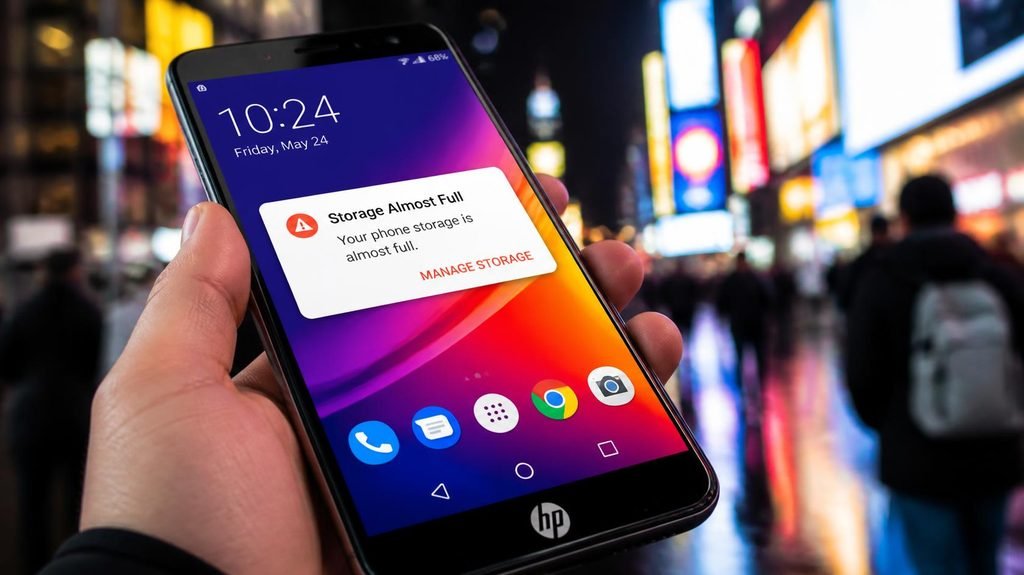
The “Storage Almost Full” notification always arrives at the worst moment — trying to film something important, or downloading the one app you actually need. No room, no exceptions.
Here’s the reassuring truth: 90% of your full storage comes from just three categories, and if you attack them in the right order, 30 minutes frees up serious space. This is a triage — biggest wounds first. (And note: a full phone is also a slow phone — but slow has other causes too, which we covered in our guide to why phones slow down.)
Step 0: Look at the X-ray (2 minutes)

- Compatible with Nintendo-Switch (NOT Nintendo-Switch 2)
- Save time with card offload speeds of up to 190MB/s powered by SanDisk QuickFlow Technology (Up to 190MB/s read speeds, …
- Pair with the SanDisk Professional PRO-READER SD and microSD to achieve maximum speeds (sold separately), Compatible wit…
Don’t guess — diagnose. On iPhone: Settings → General → iPhone Storage. On Android: Settings → Storage. You’ll see exactly which apps eat what. Screenshots of this screen are also what any repair technician would ask for.
Step 1: Videos — the silent killer (10 minutes)
One minute of 4K video is roughly 400MB. One minute. Your camera roll likely contains dozens of shaky 20-second clips you’ll never watch again, plus screen recordings you forgot existed.
The hidden double-whammy: if you use WhatsApp, media is often saved twice — once in the chat, once in your camera roll. Deleting from the gallery doesn’t touch the chat copy.
The move: Scroll your videos, offload the keepers to cloud or a computer, delete the rest. This single step routinely frees 5–10 GB.
Step 2: Photo duplicates, bursts, and screenshots (5 minutes)
Burst photos (50 frames to capture one jump), eleven nearly-identical group photos, and a screenshot folder containing 2022’s grocery lists. Sort by category in your gallery app and swipe them away in bulk.
Step 3: Offload unused apps (3 minutes)
iPhone has a beautifully underrated feature: Settings → General → iPhone Storage → Offload Unused Apps. It deletes the app but keeps your documents and data, so when you reinstall someday, everything returns. Android users: the “Free up space” tool in Google Files does the equivalent.
Step 4: Message attachments (5 minutes)
Years of memes, GIFs, and videos sent in chats live inside your Messages app. iPhone: Settings → Messages → review Large Attachments, and set messages to keep for 30 days or 1 year instead of “Forever.” Telegram and WhatsApp have their own storage cleaner in settings.
Step 5: Streaming downloads (3 minutes)
- Compatible with Nintendo-Switch (NOT Nintendo-Switch 2)
- Save time with card offload speeds of up to 190MB/s powered by SanDisk QuickFlow Technology (Up to 190MB/s read speeds, …
- Pair with the SanDisk Professional PRO-READER SD and microSD to achieve maximum speeds (sold separately), Compatible wit…

- SanDisk 32GB Ultra microSDHC 120MB/s A1 Class 10 UHS-I

- Expand your storage in a flash: ideal for Android smartphones and tablets, and Windows laptops.
- Up to 140MB/s transfer speeds to move up to 1000 photos per minute
- Load apps faster with A1-rated performance
That season downloaded “for the flight” six months ago. Spotify offline playlists you forgot. Netflix downloads expire, but Spotify’s don’t — check Spotify: Settings → Storage.
Step 6: Caches (2 minutes)
Android especially: Settings → Apps → your biggest apps → Clear Cache. (On iPhone, cache is cleared by offloading the app in Step 3.) Chrome’s own cache: Settings → Privacy → Clear Browsing Data → Cached images.
Step 7: The mysterious “System Data” or “Other”
If you see a giant unexplained block (10+ GB), first try a restart. If it persists, the honest fix is a backup-and-restore — annoying, but it genuinely resets the junk. Consider it a last resort, not a first move.
Prevention — the 10-minute monthly habit:
Stay under 80% full permanently (phones need breathing room to perform), turn off WhatsApp’s auto-save to camera roll, and do this quick triage once a month while watching TV. A phone with free space is a faster phone — and a faster phone is one you don’t feel pressured to replace.
Disclosure: This post contains affiliate links. If you click through and make a purchase, we may earn a small commission at no extra cost to you. We only recommend products we genuinely believe offer great value.